Tier Assessment
Set up Tier Assessment to automatically review how customers spend, order, or earn points and keep them in the right loyalty tier
This feature is available for the Ultimate plan.
Introduction
For Shopify Plus merchants using the enterprise plan, keeping your loyalty program members in the right tiers is essential for maintaining engagement and rewarding your top spenders.
The Tier Assessment feature automatically reviews how active your customers are — by money spent, number of orders, or points earned — to determine whether they keep their current VIP status or move to a lower tier. Assessment uses the same metric as your tier level-up method, so the labels and units below adapt to your setup.
Understanding the Rules
The Tier Assessment feature operates by allowing merchants to set the following parameters:
- Assessment Cycle (X): The period after which the customer’s spending will be reviewed.
- Order Review Timeframe (Y): The specific timeframe in which orders are evaluated.
- Maintenance Threshold (Z): The minimum a customer must reach within the timeframe to keep their tier — an amount spent ($), an order count, or points earned, depending on your tier level-up method.
After each cycle (X), the system checks whether customers have met the threshold (Z) within the specified timeframe (Y). If not, they may be downgraded to a lower tier.
How to set up Tier assessment
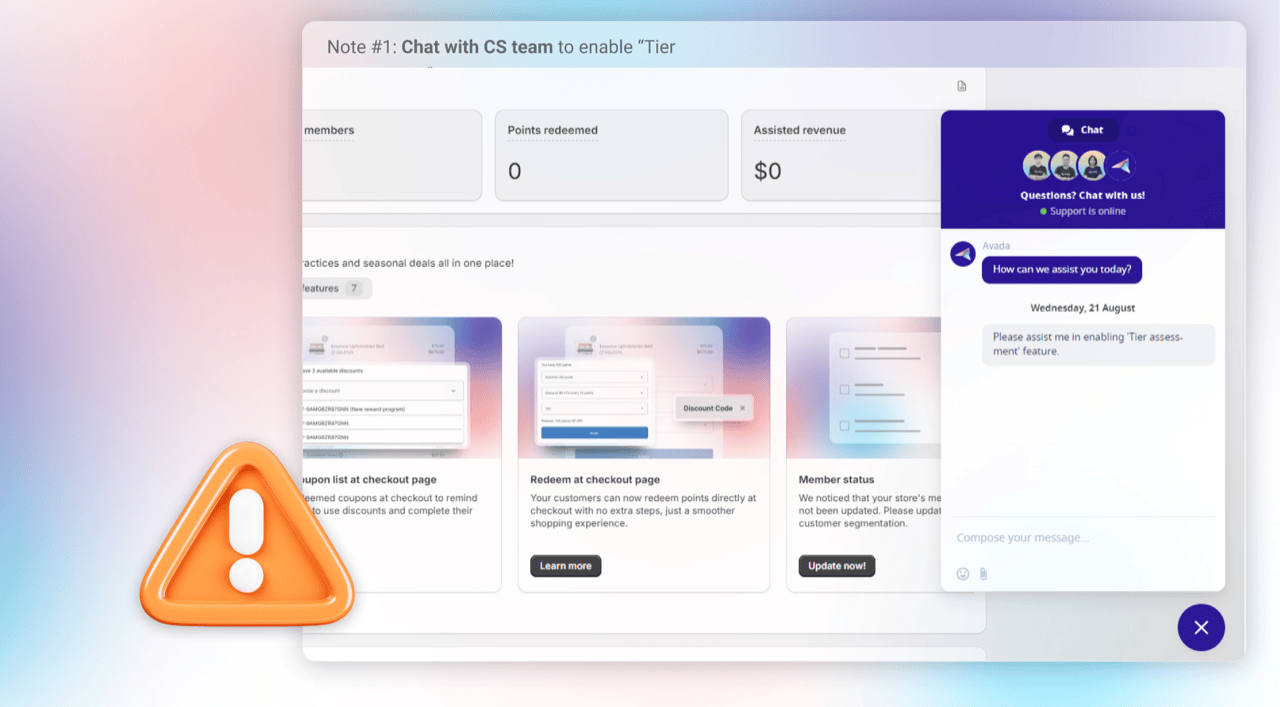
Open the Joy Loyalty application
Contact Joy Loyalty customer support
Request to enable the "Tier Assessment" feature
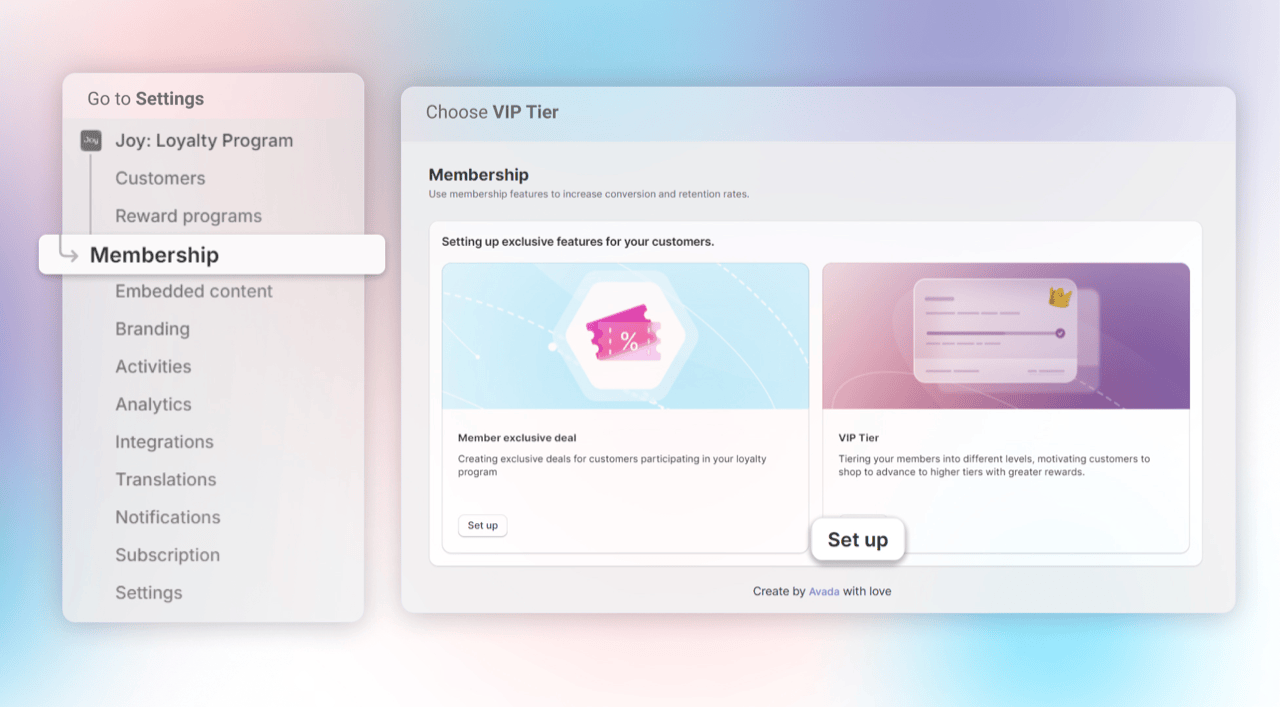
After having Tier Assessment in your setting, Open Membership > VIP Tier > Set up
Choose Assessment > Set up Tier Assessment by configuring:
- Assessment Cycle: Set how often (X months) the system reviews customers for tier retention.
- Review Timeframe: Define the period (Y months) of activity to evaluate.
- Maintenance Threshold: Set the minimum a customer must reach to keep a tier — spending, order count, or points, matching your tier level-up method.
Note: Tier Assessment follows your tier level-up method — Money Spent, Number of Orders, or Points Earned — and the labels adapt automatically. If you change your tier level-up method, Tier Assessment is turned off; re-enable it so the next cycle starts cleanly on the new metric.
When assessment runs
- Cycle length is counted in months. After a run, the next assessment is scheduled for that date plus your assessment cycle. A cycle saved without a unit is read in months — the unit the setup screen shows.
- Each store is assessed once per cycle. Members are not re-reviewed between cycles, so a member below the threshold moves down one tier per cycle, not one per run.
- A member reviewed this cycle is not reviewed again until it closes. With Assessment cycle start date set to On last tier update, each member's next review falls a full cycle after their last one, and keeping a tier counts as a review. Changing a member's tier mid-cycle restarts that member's cycle.
- Members who still qualify for their tier keep it. If a member misses the maintenance threshold but still meets the requirement for the tier they hold, they stay in that tier — no tier-change record on their timeline and no downgrade email.
- Save a maintenance threshold before turning Assessment on. With the threshold empty, members are skipped and no tier changes.
What customers see
When Tier Assessment is on, a member who has not yet reached the maintenance threshold sees how much more it takes to keep their tier before the next assessment. The sentence follows your tier level-up method:
| Tier level-up method | What the member sees |
|---|---|
| Money Spent | Spend amount more to keep tier |
| Points Earned | Earn points more to keep tier |
| Number of Orders | Place count more orders to keep tier |
- Where it shows — the Unified Widget membership card, the VIP Tier theme block (card and table layouts), the VIP tier benefits block on the customer account page, and the Loyalty Hub.
- Next to the next-tier line, not instead of it — the same activity counts toward both. One is the floor to keep today's tier; the other is the target for the next one.
- Members on track see nothing extra — once a member has met the threshold, the line disappears.
You can change the wording of all three sentences in the Translation editor.
Remind members before the review
The Tier assessment reminder email warns a member who is at risk of dropping a tier, before the review that decides it. It shows how much more the member needs to keep the tier, the review date, their current tier and the tier they move to without it.
The email is off by default. To turn it on, go to Notifications, open Tier assessment reminder and switch it on. Set days before the review to choose when it goes out; the default is 30 days. If Tier Assessment is off, the email shows a Needs Tier assessment badge and a Set up tier assessment link instead.
Each member gets at most one reminder per review. Members already on track to keep their tier are skipped, as are guests, members who left the program or are excluded by a segment, and customers who unsubscribed from emails.
Sending the reminder through Klaviyo: go to Integration > Klaviyo, tick the Tier Assessment Reminder trigger and set the number of days (1 to 365). Joy then sends the Klaviyo event Joy: Pre Tier Assessment Reminder to your flow for the same members. Joy does not check its own unsubscribe list for this event, since Klaviyo keeps consent.
Comparison Between Tier Assessment and Tier Demotion
| Tier assessment | Tier demotion | |
|---|---|---|
| Purpose | Automatically reviews customer spending over time to determine tier status, allowing merchants to fine-tune evaluations. | Focuses on downgrading inactive customers, offering a simple approach to basic tier management. |
| Evaluation Criteria | Uses three key variables—assessment cycle (X), review period (Y), and spending threshold (Z)—for strategic tier retention. | Sets a single period (X) for downgrades if customers fail to earn points. |
| Customization and Flexibility | Offers customization with options like review windows and spending conditions, ideal for tailored loyalty management. | Provides a simple, straightforward method ideal for basic tier management needs. |
| Use Case | Ideal for Shopify Plus merchants seeking a robust method to keep top spenders engaged through regular tier reassessments. | Perfect for merchants wanting a simple, time-based system that downgrades tiers for inactivity |
| Outcome | Maintains or demotes tiers based on a comprehensive view of the customer’s spending habits. | Primarily focuses on tier demotion due to inactivity or insufficient points within the set period. |
Overall
The Tier Assessment feature helps automate the process of managing your VIP customers, ensuring that their tier is accurately adjusted based on their spending behavior. By setting the right assessment cycle, evaluation period, and spending criteria, you’ll maintain a high level of engagement in your loyalty program while ensuring fair tier placements.
Curious how top brands achieve 98.5% MoM Sales Growth with vip tier assessment
Discover how Joy helps brands like Allbirds turn one-time buyers into devoted fans. Book a demo to see our enterprise-grade features like automated tier assessment.
Frequently asked questions
Does the reminder replace the downgrade email?
No. Tier Assessment no longer sends the Inactivity tier warning email when it moves a member down a tier. The reminder goes out before the review instead.
Why is the reminder not sending?
Check that the email is switched on, that Tier Assessment is on, and that a maintenance threshold is saved. A member also needs to be below the threshold to keep their tier; members already on track receive nothing.
Can a member get the reminder more than once?
No. Each member gets one reminder per review cycle.
Does the amount in the email match what the storefront shows?
Yes. The email and the storefront line that shows what a member needs to keep their tier follow the same rule.
Why can't I see the Klaviyo trigger?
The Tier Assessment Reminder trigger shows only for stores with Tier Assessment enabled. If you don't see it, contact us and we'll check your setup.
Need help?
Contact us via the live chat widget in your Joy admin, or email us at win@joy.so.